

- Windows 11's January update has a new bug
- This is reportedly causing sleep mode to fail on some older PCs
- The glitch also locks up the system, requiring a hard reset – although there's one possible workaround you can try to resolve it
Windows 11 has run into more problems with its latest update, and now some users are suffering at the hands of a bug affecting sleep mode.
Windows Latest reports that a number of Windows 11 users are finding sleep mode no longer works after installing the January update (KB5074109, which was released just over a week ago).
This pertains to what's known as the S3 sleep state, which is the original sleep mode for Windows, and so this won't affect newer PCs (as they don't use this, and I'll come back to why shortly). In this sleep state, everything is powered down (display, processor, even the system fans) except for the RAM, which stays alive (maintaining whatever you're doing).
According to one user, the problem is as follows: "After installing KB5074109, the sleep function does not work. On going to Power and pressing Sleep, the screen goes blank, but the PC does not power down. The only way to get the PC to restart is to do a hard restart, i.e. hold the power button down on the PC until it turns off, and then restart. This happens every time I go into Sleep mode."
There are similar reports on Reddit and elsewhere, and unfortunately, as described, this isn't just about sleep mode failing to kick in, but also the fact that the PC effectively crashes, and needs a hard reboot to recover.
Another Windows 11 user observes that the problem has hit three of their PCs (one running Windows 11 Home, and two using Pro editions of the OS). They further note that the problem vanishes when the January update is removed, and returns when it's reinstalled, suggesting this is definitely an issue with KB5074109.
Analysis: insomniac computers
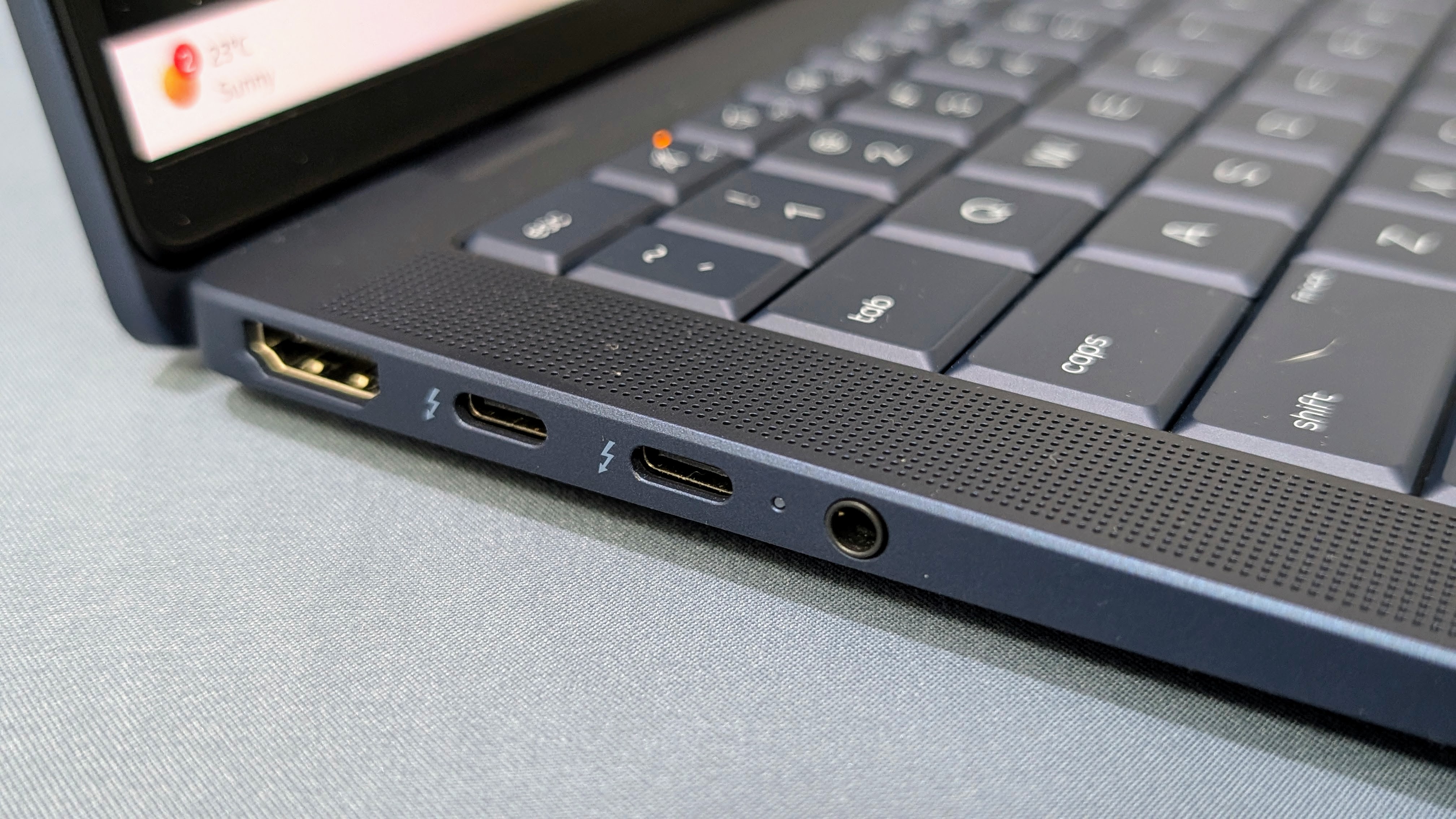
The S3 sleep state only pertains to older PCs, because newer devices running Windows 11 will use modern standby instead. So, as noted, if you have a PC which was bought this decade you likely won't run into any trouble with sleeping, and not with your laptop certainly – all contemporary notebook models have shifted to modern standby (known as S0 'lower power idle'). This may not be the case with all desktops from this decade, mind – for example, my computer is five years old and still uses S3 sleep.
But mostly, if you have a newer machine, you'll likely avoid this gremlin in the works. Those with an older PC who are encountering problems may have to simply avoid using sleep mode – which is hardly ideal, although there is one potential workaround you can try.
According to a Feedback Hub post that Windows Latest spotted, a possible solution is that if you have a USB webcam attached to your PC, you can try unplugging it. That may just do the trick – but otherwise, there are no other suggestions as to how this bug might be sidestepped.
This latest reported bug with the January update comes on top of issues with the classic Outlook app (with POP accounts) whereby it freezes up, and a bug that means some PCs won't shut down. The latter is a nasty one, but it only affects enterprise users with a certain feature enabled, so it isn't something your average person has to worry about, thankfully.
A third bug that Microsoft has acknowledged is an issue with Remote Desktop Connections failing to work, although the good news is that emergency fixes have been deployed for those latter two issues – hopefully fixes will be inbound for the Outlook problem, as well as the sleep bug, soon.
Finally, I've also noticed some user complaints about weird issues with their keyboard and mouse after installing the January update. All in all, then, it's not a great start to the year for Microsoft.
Follow TechRadar on Google News and add us as a preferred source to get our expert news, reviews, and opinion in your feeds. Make sure to click the Follow button!
And of course you can also follow TechRadar on TikTok for news, reviews, unboxings in video form, and get regular updates from us on WhatsApp too.
Source: TechRadar